



• Contact us
  • Login
  • Android
    Android 15

    Google Pixel Android 15 Update

    Stolen Phone? Recovery and Preventative Measures

    Stolen Phone? Recovery and Preventative Measures

    How to Protect Your Privacy Using an Android Device?

    8 Ways to Boost Your Android Phone’s Battery Life

    Google Pixel Phones

    3 Ways to take a screenshot on Google Pixel phones

    Restart, Turn off Google Pixel

    How to Restart, Turn off Google Pixel Android Phones

    custom DNS on Google Pixel phones

    How to set up custom DNS on Google Pixel phones

    Google Pixel 6 and Pixel 6 Pro settings

    Google Pixel 6 and Pixel 6 Pro settings to change

    Connection problem or invalid MMI code

    Fix: Connection problem or invalid MMI code

  • iPhone
    Stolen Phone? Recovery and Preventative Measures

    Stolen Phone? Recovery and Preventative Measures

    Slow iPhone Charging Speed

    How to Fix Slow iPhone Charging: Tips and Tricks

    Screenshot, record screen, block numbers, show battery percentage, close all apps on iPhone

    How to screenshot, record screen, block numbers, show battery percentage, close all apps on iPhone

    How to Activate FaceTime

    How to activate FaceTime

    How to Activate iMessage

    How to Activate iMessage on iPhone

    How to Enable MMS on iPhone

    How to Enable MMS Messaging on iPhone

    How to Turn on Automatic Network Selection on iPhone and Android Devices

    Automatic and Manual Network Selection on iPhone and Android Devices

    iOS 15 Muted Microphone

    How to fix iPhone iOS 15 Calling not Working

    iPhone 13 Pro Max and iPhone 13 Pro

    iPhone 13 Pro Max Specifications and overview

  • Technology
    Snapdragon 8 Gen 1

    Snapdragon 8 Gen 1 Mobile Platform

    Google Tensor

    Google Tensor: Everything you need to know about the new SoC from Google

    Samsung Galaxy Z Flip

    Foldable Smart Devices Explained

    Qualcomm Snapdragon 865 Overview and Specifications

    Qualcomm Snapdragon 865 Overview and Specifications

    Wi-Fi Version, Speed, Generation, Technologies Introduced and Year of Introduction

    Wi-Fi: Version, Speed, Generation, Technologies Introduced and Year of Introduction

    Facial Recognition Technology in Smartphones

    Choose the Best Micro SD (Memory Card) for Your smartphone

    Choose the Best Micro SD (Memory Card) for Your smartphone

    Tizen OS, Does it really Matter ?

    Tizen OS, Does it really Matter ?

    Bluetooth

  • How To

    How to Use Multiple User Profiles on Your Android TV/Google TV

    How to Connect Bluetooth Devices to Your Android TV/Google TV

    How to Use Chromecast with Your Android TV/Google TV

    How to Troubleshoot Common Issues with Your Android TV/Google TV

    How to Set Up Parental Controls on Your Android TV/Google TV

    How to Use Google Assistant on Android TV/Google TV

    How to Cast Your Phone’s Screen to Your Android TV

    How to Set Up and Connect Your Android TV to Wi-Fi

    Google Pixel Phones

    3 Ways to take a screenshot on Google Pixel phones

    Restart, Turn off Google Pixel

    How to Restart, Turn off Google Pixel Android Phones

    custom DNS on Google Pixel phones

    How to set up custom DNS on Google Pixel phones

    Light Dark Mode iPhone

    How to Enable Dark Mode on iPhone and Android Devices

    Enter Password

    How to Remove Password Protection from pdf

    Slow iPhone Charging Speed

    How to Fix Slow iPhone Charging: Tips and Tricks

    How to speed up a slow Wi-Fi

    How to speed up slow Wi-Fi

    Connection problem or invalid MMI code

    Fix: Connection problem or invalid MMI code

    How to make a website?

    How to Make a Website or a Blog

    YouTube Music is not available in your area

    Fix: YouTube Music is not available in your area

    How to block spam calls

    How to block spam calls in the United States

    Fix: SIM not provisioned MM

    Fix: SIM not provisioned MM

  • Phone Carriers
    • AirVoice Wireless
    • AirTalk Wireless
    • Assist Wireless
    • Cintex Wireless
    • QLink Wireless
    • StandUp Wireless
No Result
View All Result
  • Android
    Android 15

    Google Pixel Android 15 Update

    Stolen Phone? Recovery and Preventative Measures

    Stolen Phone? Recovery and Preventative Measures

    How to Protect Your Privacy Using an Android Device?

    8 Ways to Boost Your Android Phone’s Battery Life

    Google Pixel Phones

    3 Ways to take a screenshot on Google Pixel phones

    Restart, Turn off Google Pixel

    How to Restart, Turn off Google Pixel Android Phones

    custom DNS on Google Pixel phones

    How to set up custom DNS on Google Pixel phones

    Google Pixel 6 and Pixel 6 Pro settings

    Google Pixel 6 and Pixel 6 Pro settings to change

    Connection problem or invalid MMI code

    Fix: Connection problem or invalid MMI code

  • iPhone
    Stolen Phone? Recovery and Preventative Measures

    Stolen Phone? Recovery and Preventative Measures

    Slow iPhone Charging Speed

    How to Fix Slow iPhone Charging: Tips and Tricks

    Screenshot, record screen, block numbers, show battery percentage, close all apps on iPhone

    How to screenshot, record screen, block numbers, show battery percentage, close all apps on iPhone

    How to Activate FaceTime

    How to activate FaceTime

    How to Activate iMessage

    How to Activate iMessage on iPhone

    How to Enable MMS on iPhone

    How to Enable MMS Messaging on iPhone

    How to Turn on Automatic Network Selection on iPhone and Android Devices

    Automatic and Manual Network Selection on iPhone and Android Devices

    iOS 15 Muted Microphone

    How to fix iPhone iOS 15 Calling not Working

    iPhone 13 Pro Max and iPhone 13 Pro

    iPhone 13 Pro Max Specifications and overview

  • Technology
    Snapdragon 8 Gen 1

    Snapdragon 8 Gen 1 Mobile Platform

    Google Tensor

    Google Tensor: Everything you need to know about the new SoC from Google

    Samsung Galaxy Z Flip

    Foldable Smart Devices Explained

    Qualcomm Snapdragon 865 Overview and Specifications

    Qualcomm Snapdragon 865 Overview and Specifications

    Wi-Fi Version, Speed, Generation, Technologies Introduced and Year of Introduction

    Wi-Fi: Version, Speed, Generation, Technologies Introduced and Year of Introduction

    Facial Recognition Technology in Smartphones

    Choose the Best Micro SD (Memory Card) for Your smartphone

    Choose the Best Micro SD (Memory Card) for Your smartphone

    Tizen OS, Does it really Matter ?

    Tizen OS, Does it really Matter ?

    Bluetooth

  • How To

    How to Use Multiple User Profiles on Your Android TV/Google TV

    How to Connect Bluetooth Devices to Your Android TV/Google TV

    How to Use Chromecast with Your Android TV/Google TV

    How to Troubleshoot Common Issues with Your Android TV/Google TV

    How to Set Up Parental Controls on Your Android TV/Google TV

    How to Use Google Assistant on Android TV/Google TV

    How to Cast Your Phone’s Screen to Your Android TV

    How to Set Up and Connect Your Android TV to Wi-Fi

    Google Pixel Phones

    3 Ways to take a screenshot on Google Pixel phones

    Restart, Turn off Google Pixel

    How to Restart, Turn off Google Pixel Android Phones

    custom DNS on Google Pixel phones

    How to set up custom DNS on Google Pixel phones

    Light Dark Mode iPhone

    How to Enable Dark Mode on iPhone and Android Devices

    Enter Password

    How to Remove Password Protection from pdf

    Slow iPhone Charging Speed

    How to Fix Slow iPhone Charging: Tips and Tricks

    How to speed up a slow Wi-Fi

    How to speed up slow Wi-Fi

    Connection problem or invalid MMI code

    Fix: Connection problem or invalid MMI code

    How to make a website?

    How to Make a Website or a Blog

    YouTube Music is not available in your area

    Fix: YouTube Music is not available in your area

    How to block spam calls

    How to block spam calls in the United States

    Fix: SIM not provisioned MM

    Fix: SIM not provisioned MM

  • Phone Carriers
    • AirVoice Wireless
    • AirTalk Wireless
    • Assist Wireless
    • Cintex Wireless
    • QLink Wireless
    • StandUp Wireless
No Result
View All Result
No Result
View All Result

Android TV 📺 → Fix: Xiaomi Mi Box S stuck on boot loop after update

Fix: Xiaomi Mi Box S stuck on boot loop after update

Mercy by Mercy
November 12, 2021
in Android TV 📺
Reading Time: 5 mins read

Xiaomi Mi Box S is ultimately the best budget-friendly streaming bix out there. After a couple of updates, performance improved with a couple of new additional features. Unfortunately, after the last update that was available as a notification, it sent the device into a boot loop only showing the mi logo. This article shows you how to fix Xiaomi Mi Box S boot loop problems.

How to Manually Install Android 12 on Xiaomi Mi Box S (MDZ-22-AB)

To manually install Android 12 on your Mi Box S, you will need a flash drive formatted with fat 32 file format and a Windows computer.

Here are the steps to manually install Android 12:

  1. Format your flash drive with Fat 32 file format. This option is available in Windows explorer.
  2. Download Android 12 from this link and rename with to update.zip.
  3. Transfer the file update.zip to the flash drive and plug it in to your Xiaomi Mi Box S.
  4. Switch off power to the TV box from the wall socket and wait for at least 5 seconds before proceeding.
  5. Flip and switch on and as the Xiaomi logo appears, quickly press and hold the Okay + Back button on your remote control together until the Android recovery logo appears.
  6. Click Update and select the file to apply the update, update.zip.
  7. Your TV will reboot and flash the scree a few times for a few minutes, up to 15 minutes. Do not Panick, just wait until the update is complete.
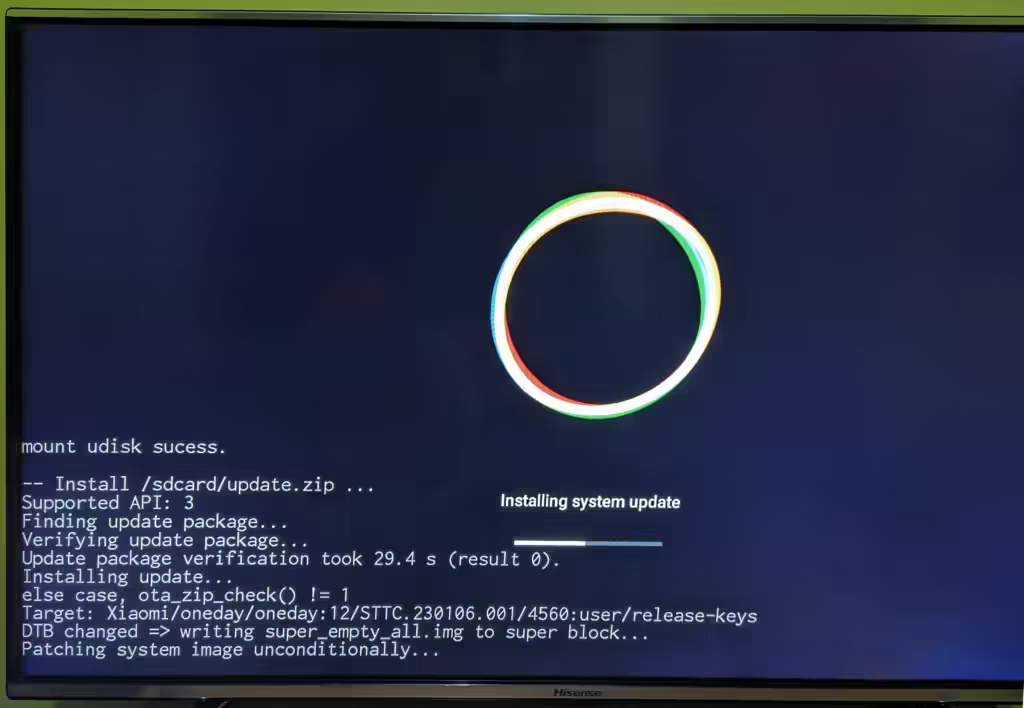
Xiaomi Mi Box S Update

If your TV box is bricked completely, consider this technique to recover it.

Xiaomi Mi Box S Android TV 12 (update-oneday_s_4467-user)

Android TV 12 update for Xiaomi Mi Box S dropped on 6th September 2023. It comes oddly names update-oneday_s_4467-user.

This update is not stable by any measure and should never have been released to the public. It bricked my TV box and other users on Reddit [2] [3] claim apps no longer work.

It is best not to update Xiaomi Mi Box S whenever there is an update notification to Android TV 12 (update-oneday_s_4467-user) since it is riddled with bugs.

For anyone feeling adventurous and wants to try Android 12 on their Xiaomi Mi Box S, download it here and manually flash it.

How to fix Xiaomi Mi Box S boot loop

This process wipes all your data and apps that are installed, and factory reset your Xiaomi Mi Box S.

If you have already updated and here for a solution after a boot loop issue, follow the steps below:

  1. First, the device to be reset is disconnected from the wall power.
  2. Press the BACK button and the CONFIRM key at the same time
  3. Plug Mi Box S back to electricity, hold down both buttons.
  4. After a while, you should see a recovery mode screen, choose Wipe data / Factory reset.
  5. Confirm everything by selecting Factory reset.

If this does not fix the problem, try the Xiaomi Mi Box S boot loop fix after the update. This process will perform a clean install of Android 9, and this will wipe all your apps and data. It is quite involving and requires more tools and some level of expertise.
Tags: Android
ShareTweetSendShare
Mercy

Mercy

TV and social media :‑)

Related Posts

Android

How to Protect Your Privacy Using an Android Device?

by Vincent
October 18, 2023
WhatsApp Dark Mode is Finally here
News

WhatsApp Dark Mode is Finally here

by Vincent
March 3, 2020
OnePlus 8 Pro
Android

OnePlus 8 Pro Specifications

by Vincent
April 14, 2020
WhatsApp

How to Enable Request Option to Join a WhatsApp Group when Added

by Vincent
December 6, 2019
Load More

Comments 5

  1. not working says:
    4 years ago

    not working for me. I am not able to stop rebooting. pressing the buttons on remote did not anything.

    • admin says:
      4 years ago

      Try this other method, Boot loop fix for Xiaomi Mi Box S after system update. This fixed it permanently when the issue re-appeared.

  2. Thilina Harshanath says:
    3 years ago

    I can’t access recovery mode using remote ( pressing back button+ ok button) any other methods for access recovery mode

  3. Anest says:
    2 years ago

    I am also not ble to access the recovery menu using the remote. The loop is happening very fast. The MI logo is literally just flashing on my screen.

    • Vincent says:
      2 years ago

      Try the other option. It works but requires a lot to be done on your end.

Facebook Twitter Youtube

Why Our Phones Today?

Our Phones Todays presents to you well researched and helpful articles so you can quickly find what you are looking for. We chose an approach of cutting bloat since people are constantly looking for specific information and saving time is paramount.

Pages

  • About
  • Authors
  • Disclaimer
  • Our Phones Today
  • Privacy Policy
  • Sitemap
  • Terms of Service

Contact

  • Contact us
  • Our Phones Today

Apps

Vibrator App
Network Monitor - 5G, 4G, Wi-Fi

© 2025 Our Phones Today

Welcome Back!

Login to your account below

Forgotten Password?

Retrieve your password

Please enter your username or email address to reset your password.

Log In
No Result
View All Result
  • Android
  • iPhone
  • Technology
  • How To
  • Phone Carriers
    • AirVoice Wireless
    • AirTalk Wireless
    • Assist Wireless
    • Cintex Wireless
    • QLink Wireless
    • StandUp Wireless

© 2025 Our Phones Today