











For subscribers of New York Mobile (NYMobile), reliable mobile data and multimedia messaging (MMS) are essential components of the service experience. While most devices automatically configure network settings upon SIM activation, certain scenarios—particularly with physical SIM cards on Android devices—may require manual configuration of Access Point Name (APN) settings to restore full functionality.
This article provides a comprehensive technical guide for configuring APN settings on both Android and iPhone devices to ensure optimal connectivity.
Understanding APN Configuration
An Access Point Name (APN) is a gateway between a mobile network and the internet. It defines how your device connects to the carrier’s network. If you are unable to download web pages or send picture messages (MMS) after activating your NYMobile plan, manual configuration may be necessary to update these settings correctly.
Configuring New York Mobile APN Settings on Android Devices
Android devices allow for manual entry of APN parameters. Follow the steps below carefully. Note that all inputs are case-sensitive and must match exactly as specified by NYMobile standards.
Step 1: Verify Current Configuration
Before making changes, check if your device is already configured correctly.
- Open the Settings application on your Android phone.
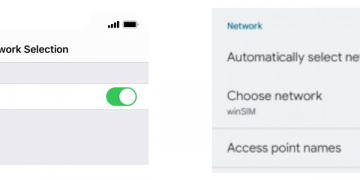
- Navigate to Connections, Network & Internet, or use the search function within settings to locate “Access Point Names.”
- Select Mobile Networks or SIMs, then tap on your active SIM (e.g., NYMobile).
- Tap Access Point Names (APN).
Diagnostic Check:
If an APN named “NYMobile” appears in the list, your device is likely configured correctly. Proceed to Step 4 (Restart & Validate).
If “NYMobile” is missing or you are experiencing connectivity issues, proceed to Step 2.
Step 2: Reset and Manual Entry
If the correct APN is not present, perform a reset followed by manual configuration.
- Tap the three-dot menu (top right corner) and select Reset to default.
- Note: If “NYMobile” appears after the reset, select it and proceed to Step 4.
- If “NYMobile” does not appear, tap the + (Plus) icon to create a new APN entry manually.
- Enter the following values exactly as shown:
| Field | Value | Notes |
|---|---|---|
| Name | NYMobile | Required for identification |
| APN | wholesale | Critical for data routing |
| Proxy | (Leave Blank) | Do not enter values |
| Port | (Leave Blank) | Do not enter values |
| Username | (Leave Blank) | Do not enter values |
| Password | (Leave Blank) | Do not enter values |
| Server | (Leave Blank) | Do not enter values |
| MMSC | http://wholesale.mmsmvno.com/mms/wapenc | Required for MMS |
| MMS Proxy | (Leave Blank) | Do not enter values |
| MMS Port | 8080 | Critical for MMS routing |
| MCC | 310 | Mobile Country Code |
| MNC | 240 | Mobile Network Code |
| Authentication Type | Not Set | Do not change default |
| APN Type | default,supl,mms,ia | Comma-separated values |
| APN Protocol | IPv4/IPv6 | Standard protocol |
| Roaming Protocol | IPv4/IPv6 | For roaming networks |
| MVNO typeGID | (Default) | Do not modify |
| MVNO value | (Default) | Do not modify |
Step 3: Save and Select Configuration
- Tap the three-dot menu (top right) and select Save.
- Ensure that the newly created “NYMobile” APN is selected/ticked in the list. Only one APN can be active at a time.
Step 4: Restart and Validate Connectivity
- Restart your Android phone, or toggle Airplane Mode on for 10 seconds, then turn it off.
- Upon rebooting, verify that the status bar indicates a cellular connection (LTE or 5G).
- Test the configuration by sending a picture message (MMS) to yourself.
Configuring New York Mobile APN Settings on iPhone Devices
It is important to note that iOS devices do not support manual editing of APN settings. Apple manages carrier configurations automatically through Carrier Settings updates. Therefore, the procedure for iPhones differs from Android devices.
Recommended Actions for iPhone Users
- Check for Updates: Go to Settings > General > About. If a pop-up appears regarding a “Carrier Update,” select Update and allow your device to restart.
- Restart Device: Power the device off and on again, or toggle Airplane Mode to refresh the network connection.
- Verify SIM Status: Ensure the SIM card is properly seated and recognized by the device.
Since manual APN entry is restricted on iOS, if you continue to experience data or MMS issues after checking for Carrier Updates, please contact NYMobile Customer Support for further assistance.
Troubleshooting and Support
If you have followed the instructions above and are still unable to access mobile data or send MMS messages, consider the following troubleshooting steps:
- Re-enter Details: Double-check that all APN values were entered correctly, paying close attention to case sensitivity and punctuation.
- Network Reset: On Android, navigate to Settings > System > Reset Options and select Reset Wi-Fi, mobile & Bluetooth. Note that this will erase saved network passwords.
- Contact Support: If issues persist after a factory reset of network settings or APN configuration, please contact NYMobile Customer Support for advanced diagnostics.
Conclusion
Properly configured APN settings are essential for the seamless operation of data and messaging services on New York Mobile networks. By following this guide, Android users can manually resolve connectivity discrepancies, while iPhone users should rely on automatic carrier updates to maintain optimal performance.